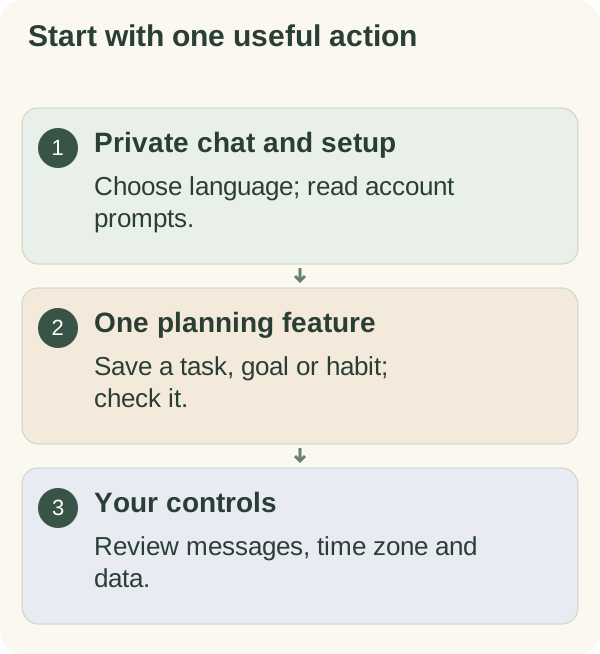
Open the Armored Kitten companion in a private Telegram chat, confirm the 18+ card (it opens in your Telegram app language when the bot offers it) and follow any account setup shown to you. Then start with one useful action: a task for today, a small goal or a recurring habit. This guide explains how the main features fit together and where to find their detailed controls.
Step 1: Open the bot
Open @armoredkitten_bot and send /start in its private chat. Use the quick-start walkthrough if you want the shortest setup path.
A new account first sees one 18+ card in its Telegram app language when the bot offers it, with a Change language button. Read the consent and account prompts that follow. If asked for your country or time zone, choose what applies to you; a Telegram language hint does not establish where you live. The language guide and time-zone guide explain those settings. A story-country preference is separate from account location and scheduling.
The companion's personal planning features belong in the private chat. A community group, the greeting studio and the private bot are separate places. Opening one does not automatically connect your records from another.
Step 2: Email verification, when requested
Follow email verification only when the bot asks for it for your account or an email-specific feature. Use an address you control and enter the code in the intended private flow. Read the email verification guide for expiry, retry and recovery steps.
Verifying an address proves control of that address for the requested flow. It is not a wallet signature, a token transfer or a promise of continuing access to every feature. If no email prompt appears, continue with the setup actually shown.
Step 3: Link a wallet
When your access path asks for wallet ownership, open the linking flow from the private chat. Review the readable message before signing. The ownership signature is not a blockchain transaction and does not transfer tokens.
The wallet-linking guide covers supported wallet choices, wallet browsers and expired links. Link a wallet you control and check the bot's resulting status. A successful signature and a successful eligibility check are different results.
You never need to paste a seed phrase or private key into the bot or linking page. If a page asks for either, stop. See seed phrase scams before proceeding with an unfamiliar wallet request.
Step 4: Read your current access status
Use the account status displayed in the bot rather than assuming every visitor receives the same allowance. Access can depend on the current release, eligibility, an offered limited period or wallet-holder rules. The access and account-recovery guide explains the possible paths.
If the bot offers a limited period, read its expiry, included features and usage allowance. Chat and automatic model responses can share limits. If holder verification is requested, review the actual token and balance requirement. A changing price, balance or unavailable provider can affect a check; buying a token does not guarantee future access or value.
A friend invitation, verified email or gift receipt does not replace account checks. Deleting stored records does not necessarily reset one-time eligibility. If you are moving Telegram accounts, use the supported move or linked-wallet recovery flow, rather than deleting an account to experiment.
Step 5: Set your first goal
Choose My goals or send /goals. Add a goal you can describe clearly, then use its available step controls. An illustrative goal might be “Prepare the application,” with a first step of “Find the required documents.” These are examples, not tasks the bot has saved for you.
Read the goals and small-steps guide for adding, reviewing and completing steps. After a change, inspect the resulting card. A suggestion in conversation is not proof that a goal or task was saved.
If the next step feels too large, ask for a smaller one. The motivation and smaller-steps guide shows how to turn a broad intention into an action you can recognise as complete.
Plan your day
Choose Plan my day or send /today for today's task list. Use Add a task, enter a short title and confirm. Check the list to see what was saved. A command example is /today add Find the book.
Use the task controls to complete, reopen or remove an item. Send /cancel if you are in an input prompt you no longer want to finish. The daily checklist guide covers list limits, dates and stale cards.
Checklist reminders have their own switch. Read the reminder guide before relying on a schedule, and check the saved time zone. Completing a task is a record you report; the companion does not observe whether you did it.
Build a recurring habit
Open My habits from the goals card, or send /habit. Add a routine with a title you would be comfortable seeing in your planning records. You can review its available edit, pause and delete controls in the habit guide.
Use the habit check-in guide to record or correct a report. No entry means the bot lacks a report; it is not evidence that you missed the habit. Habit titles and optional notes can be included in some requested AI reflections, so keep them non-sensitive.
Focus plans
From My goals, choose Focus plan, or send /focus. The plan records an intention for an offered period; it is not evidence of work completed. Follow the card's controls to edit, pause, resume, complete or delete it.
The plan title can be used in a daily note or requested weekly reflection. Read the focus-plan guide before adding information you would not want processed for those features.
Review a week or add a calendar item
Send /week or choose Reflect on my week for a requested reflection. It uses the records included by that feature, including relevant conversation and self-reported activity. It is a reading of the available records, not an independent assessment of your effort. The weekly reflection guide explains the data included and excluded.
For a dated event, use the calendar walkthrough. Review whether an event was saved and whether a reminder was enabled. A calendar item, a task for today and a requested check-in have different controls; adding one does not prove that the others exist.
Chat, suggestions and photos
You can write in your own words. Suggested replies, when shown, are optional ways to send a response; inspect any resulting saved record separately. Read chat and reply suggestions for that distinction.
Photo understanding has a separate opt-in and processing boundaries. Read the photo guide before sending an image. A planning chat is not a suitable place for passwords, recovery phrases or sensitive documents.
Step 6: Check-ins and the daily note
A requested check-in is a follow-up you explicitly arrange. Read the scheduled check-in guide, then verify that the follow-up and time were saved. Use the offered response buttons to report what happened. A conversational suggestion alone is not a scheduled reminder.
Daily notes are a separate message category. Check whether they are enabled and inspect their saved time, format and tone. Use daily-message controls and time and format settings to change them.
Daily notes may include sourced stories. The stories and sources guide explains how to open a citation; story preferences covers hiding and restoring stories. A source link is worth reading before treating a brief retelling as the full account.
Conversation starters, checklist reminders, feature tips and calendar reminders are also distinct categories. Their saved settings, account state and service availability affect whether a message can arrive. See conversation-starter controls and feature-tip controls, rather than assuming one notification switch controls everything.
Pause automatic messages
Send /stop or /quiet for the global stop on automatic messages. This also affects agreed check-ins and calendar reminders. A reply or a single category's enable switch does not clear that global stop.
/resume or /notifications lifts the global stop while keeping the saved category choices. Review those choices before resuming. The message pause guide explains the difference between a global stop, a temporary pause and a category switch.
Invite a friend or send a token gift
/share opens the friend-invitation flow. Share the offered link yourself; the other person starts their own private chat and completes their own setup. An invitation does not share your conversation, goals or memory, and does not establish the recipient's access. Follow the sharing walkthrough.
/gift leads to the separate greeting studio's optional token-gift flow, where available. A gift needs its own recipient details, review and wallet approval. Read gift and companion access before using it. The recipient must still complete any required claim and account checks; a gift email does not automatically unlock the companion.
Keep invitation and gift links private. A token claim link can be redeemed by its holder; email verification for an invitation does not make the underlying token claim email-bound. A card alone remains an option in the greeting studio tutorial.
Settings and privacy
Open Settings or send /settings to review the saved account summary. Choose Messages for language, time zone and message categories; Personalization for names, photo consent and story preferences; Data for memory and export; or Access for wallet linking, sharing and optional gifts. The root card also keeps global message controls and the deletion entry point available. /name changes the companion's name and /callme changes what it calls you. See names and personalisation for examples.
/features offers the private companion dashboard through a signed Telegram button. Use that offered entry point for private widgets; a direct website visit does not establish private account access. Read the dashboard guide if the view looks different from what you expected.
Your data and privacy
The main data controls do different jobs:
- /privacy explains message and record processing. Read the privacy guide before sharing personal information.
- /memory lets you inspect available saved information. The memory and corrections guide distinguishes a saved fact from its source conversation and broader history.
- /export requests a compressed copy of retained account data, sent as a file in the Telegram chat. It is not an encrypted archive or a guarantee that every past message remains available. Read exporting your data before saving or sharing the file.
- /forget starts a confirmation flow for deletion of bot-held companion records. Follow the deletion guide and check the result. It cannot erase Telegram chat copies, earlier downloads or information retained by another provider.
Server-side encryption at rest is not end-to-end encryption. The running bot and its configured AI provider process the content needed for a model response. A private chat should not be treated as a personal vault. Review the feature-specific data explanation before enabling optional processing.
For old buttons, missing records or unavailable controls, reopen the relevant feature and follow the troubleshooting guide. Avoid repeatedly submitting a change before checking whether it already succeeded.
Limits and breaks
Read the current allowance and status in the bot. Model-message limits, non-model reminders and service-wide pauses are different conditions. Follow the specific retry or setup instruction shown rather than assuming every limit resets at your local midnight.
The companion supports everyday planning and encouragement. It is not a therapist, medical service or financial adviser. A generated suggestion can be mistaken; review it before acting and seek appropriate professional support for matters outside ordinary planning.
Frequently asked questions
Does linking my wallet cost anything?
The ownership-linking flow asks for a message signature, not a token transfer. Read the request. A separate purchase or gift transaction has its own costs and approval.
Can the companion move my tokens?
Linking a public wallet address does not give the companion your private signing keys. Do not supply those keys or a seed phrase. An optional gift requires a separate action in your own wallet.
Can I use it in my language?
Choose from the languages actually offered by the bot. Website tutorial translations do not prove that a language is available for every chat feature. The language guide covers saved choices and fallback behaviour.
Will chatting automatically save a task or reminder?
Do not assume so. Use the feature's save or confirmation step, then inspect the resulting task, event or check-in card. Read the response if the bot needs more information.
What happens to my data if I stop messages?
Stopping automatic messages is different from deleting records. Use /quiet for the message stop, /export for a retained-data copy and /forget for the separate deletion confirmation. Review each result.
Is the companion required to send greeting cards?
No. The greeting studio and Telegram companion have separate journeys. Use the studio tutorial to create a card, or return to the companion quick start to begin planning in Telegram.