Build a usable goal
- Step 1Name the outcome
- Step 2Add a visible first step
- Step 3Confirm what was saved
Use My goals to review an outcome and its next steps. Ask the companion to help create or revise a goal, then inspect the saved card so you know what changed. A checked step records your report, rather than independent proof of completion.
Create a goal
Open My goals or send /goals. With no saved goal, choose Set a goal; an existing goals card offers New goal. You can also describe the goal in ordinary conversation.
An illustrative request is: “Help me set a goal to prepare a short presentation in Spanish.” State what you want to work towards and any genuine deadline. If you want only ideas, make that distinction clear and review the reply before relying on it.
After asking to save or change a goal, open My goals and check its title, available steps and status. A sentence in conversation alone does not show you the current stored card.
Keep titles and reasons non-sensitive. Goal records are encrypted at rest, but relevant information may still be processed to provide the companion's requested help. The privacy guide explains the wider boundary.
Add and follow steps
Ask for a practical next action or a breakdown. Read suggestions against your actual time, materials and responsibilities. A short first action is an option; there is no requirement in this guide to fit every task into a universal number of minutes.
Step suggestions can arrive in batches of up to eight, while a goal can store up to 20 open steps. The goals card shows up to eight open-step controls at once across the displayed goals. Reload it after a change to see the current controls.
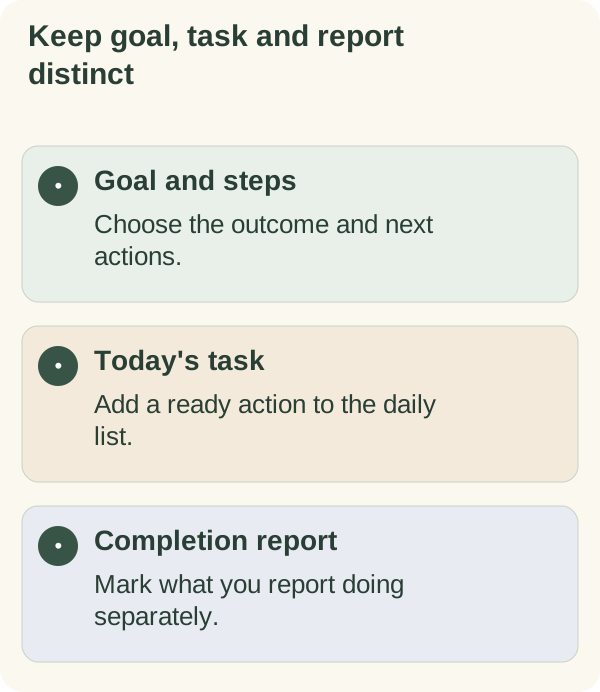
When you complete an action, tap its ✅ step button. Reload the goals card if it is stale. The control records your report; it does not inspect what happened outside Telegram.
If you want a ready step on today's task list, use the offered Add to today control. That creates the task-list arrangement without marking the goal step complete. Check both views when you need to know their current state.
Revise or pause a goal
Explain what changed and ask to update the outcome or steps. You can ask to mark a goal done, pause it or drop it. Review the saved status afterwards, especially when a suggestion in conversation could be mistaken for a completed update.
Pausing or completing a goal does not mean the account's history has been deleted. Use memory controls, export or the broader forget flow for those separate purposes.
Check workload before making a promise
The daily goal calculator divides defined remaining work across the dates you choose. It checks arithmetic, not whether the task is appropriate or the hours are available.
Compare its result with your commitments, then decide whether the scope, deadline or support needs to change. Editing a personal goal does not renegotiate another person's deadline.
Keep follow-ups a separate choice
Mentioning a goal does not by itself request a scheduled check-in. If you want a follow-up, ask for one and review its confirmed date and time using the check-in guide.
For a repeating routine, use My habits. For a broader 7- or 30-day intention, read the focus-plan guide. Choose the record that matches the decision you want to make.