Correct a record
- Step 1Find today’s report
- Step 2Replace today’s reported state
- Step 3Check the result in recent history
A habit check-in records your report for one active habit on a local calendar day. Choose the status that matches what you know, then correct it if necessary. An empty record leaves the result unknown; it does not establish a missed action.
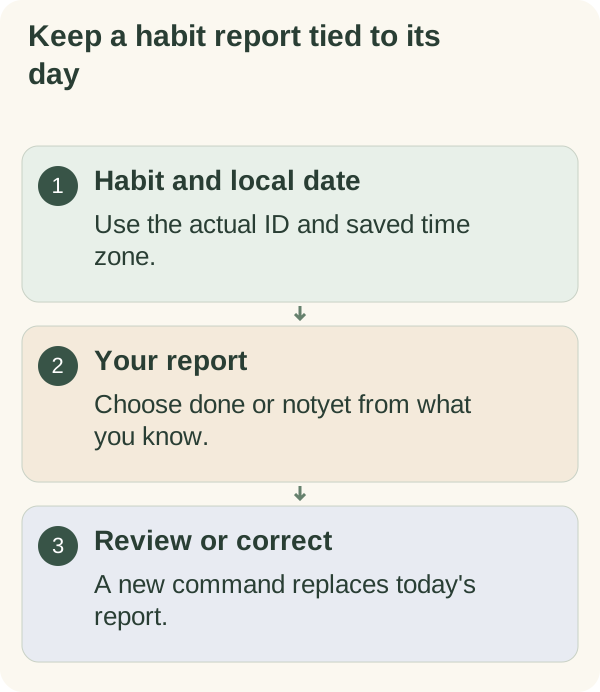
Record today's report
If a daily message includes the habit's Done and Not today controls, choose the one that fits. The button identifies the habit and date; an older daily message is not a general-purpose history editor.
You can also send /habit to find an item's ID, then use a command:
/habit log 12 donerecords that you report completing it today./habit log 12 notyetrecords your report that it has not been done./habit log 12 done Read the marked sectionadds an optional note.
Replace 12 with the actual ID. The command uses your saved time zone to determine today's date. It does not choose an arbitrary past date from a number in the message.
A paused habit cannot receive a new report until you resume it. The habit-management guide explains that control. Turning off daily messages removes those scheduled daily buttons, while the command remains the manual route when your account has access.
Correct or review a check-in
Send the command again for the same habit on the same local day to replace the report. For example, /habit log 12 done can replace a notyet report you entered earlier today.
The command replaces the optional note too. Include the note you want to keep rather than assuming an earlier note will remain when you send a replacement without it.
The current /habit card shows recent reports from a seven-day window, with a limited number of entries. It is a recent view, not a guarantee that every saved record is displayed there. Use data export when you need the available account data copy.
If a daily button is stale, reopen /habit and use the current-day command. Do not repeatedly tap an old message to reconstruct an uncertain past result.
Keep different states distinct
Done and Not today are self-reports. No entry means the companion has no report for that occasion. A planned pause or a day on which you did not intend an action needs its own context.
For an illustrative reading habit, you may remember reading yesterday but not know whether you read on another day. The unknown day should remain unknown; the chart cannot supply the missing memory. This command workflow concerns today's report rather than a promise of backdating support.
Read what a missing habit entry means before interpreting gaps as results.
Understand the data and controls
Titles and notes are encrypted in stored companion records and can appear in /memory and /export. Requested weekly reflections may use relevant habit reports and notes as context. A daily note can use active titles and recent status, but does not receive those check-in notes through that daily-message context.
Keep notes brief and non-sensitive. Neither a report nor an AI reflection independently verifies activity outside the bot.
Deleting one habit removes its check-in history after confirmation. /forget is the broader companion deletion flow. Read the privacy guide before using an export or deletion control, and review the actual confirmation.