Handle a private export
- Step 1Request your export
- Step 2Check the downloaded contents
- Step 3Store it privately
Send /export in the private companion chat to request a snapshot of the records the bot currently retains for your account. Wait for the actual document before treating the export as delivered.
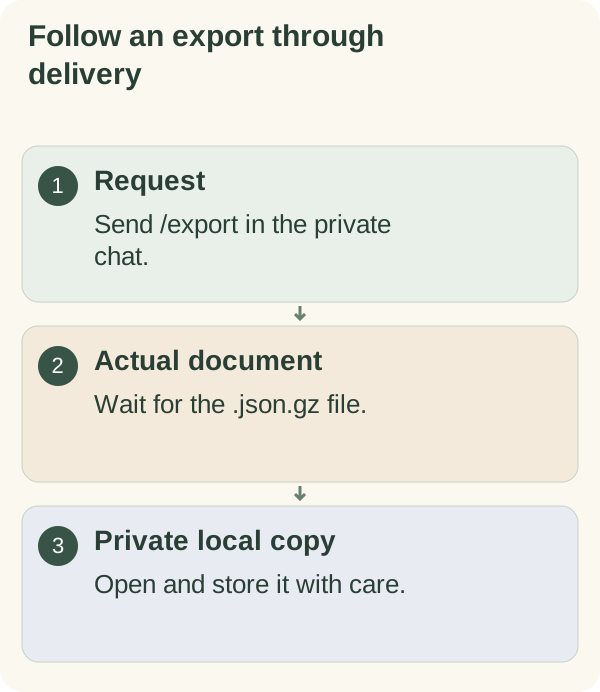
Request and open your export
Send /export in your private chat with @armoredkitten_bot. The bot acknowledges the request and prepares a Telegram document named armored-kitten-companion-export-YYYYMMDD.json.gz.
Wait for the file. A busy, failed or oversized-export response does not confirm delivery. Follow the current retry instruction rather than assuming the initial acknowledgement means the document arrived.
Save it to a device or folder you control. Decompress the gzip file with a trusted local tool to read the JSON. Compression is not password protection or encryption. Avoid public file converters and shared folders.
What the file contains
The export has a generation time and account-scoped records. Depending on what remains stored, sections can include profile and preferences, saved facts and conversation, goals and steps, daily tasks, habits and reports, focus plans, check-ins, calendar records, support preferences and activity or delivery records. Retained friend invitation records, along with relevant email and trial records, can also be included.
Treat it as a snapshot of retained records, not a guarantee that every past conversation or expired item still exists. Optional history-retention settings and earlier deletion can affect what is available.
The copy can expose information that you kept private in chat. Review it before sharing any extract, and protect stored copies with controls appropriate to your device. Making an export does not revoke photo consent or change scheduled-message preferences.
Export versus correction or deletion
Export does not delete the bot's retained records. Use saved-memory controls to inspect or correct one fact. Use the separate deletion flow when you intend to remove bot-held account records.
Changing Telegram accounts is another operation. Follow the move and recovery instructions; an export is not an import or account-transfer tool.
The bot cannot use an export or its own deletion command to erase Telegram's copies, downloaded files you saved, other people's copies or information already processed by external providers. Review the privacy boundaries.