Photo understanding has a separate consent setting. When the feature is available, enable it only after reviewing what is sent to the AI provider, then resend the image with a clear question. You can continue using text without enabling photos.
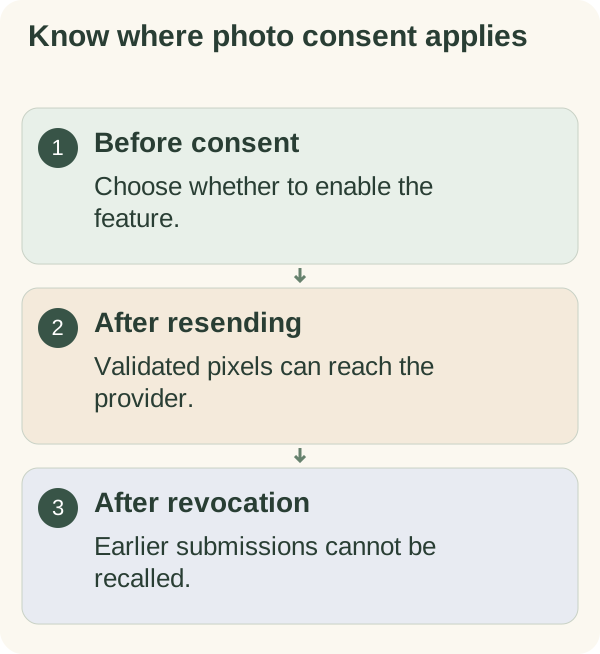
Review consent and send a photo
Open /settings in the private companion chat and choose Personalization. Read the photo-sharing notice and choose Enable photo sharing only if you agree to provider processing. If you leave it off, describe the question in text instead.
An image received before consent is not held for you to approve later. After enabling, resend the image with the question as its caption. For example, ask about a visible label rather than assuming the bot knows which detail matters.
The current intake accepts JPEG, PNG, GIF and WebP, with a maximum of 4 MiB (4,194,304 bytes) and 8192 pixels on either side. The downloaded file must pass format and dimension checks. Telegram can process an uploaded photo, so check the bot's actual rejection message rather than relying only on the file's name.
Understand what happens to the image
With consent and the required account/service checks, the bot downloads the selected image from Telegram, validates it and sends it for an AI response. In the current implementation the bytes stay in memory rather than being written to conversation storage. Your caption and an [Image attached] marker can remain in retained encrypted history.
The provider must process an image to answer. The bot cannot erase Telegram's copy or undo provider processing. Leave out unnecessary private details and do not upload another person's sensitive information without appropriate permission.
Treat a visual answer as something to verify, especially for small text or an unclear image. This feature does not establish identity, diagnose a condition or verify an official document. It returns a response; it does not edit and return the image.
Turn photo sharing off or troubleshoot
Open Personalization in Settings and use Turn photo sharing off to stop future photo processing. The service checks consent around queued processing and reply delivery. Revocation can suppress queued work or a reply, but cannot recall an image already sent to the provider.
If consent is requested, decide in Settings and resend only if you choose to proceed. If the file is rejected, check its supported type, size and dimensions. For an unavailable provider, wait for the stated recovery instruction or describe the relevant content in text.
Photo consent does not pause other message categories or delete earlier retained text. Use the privacy, message-control and deletion guides for those separate choices.