Create and review a greeting
- Step 1Choose an occasion and design
- Step 2Write and preview the message
- Step 3Choose a delivery method
See the public screen
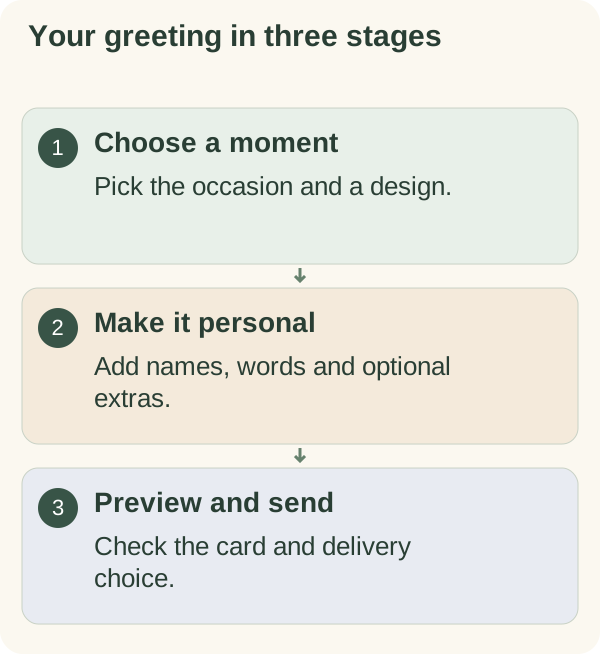
Choose a moment, make the card personal, then open Preview and send. You can make a plain greeting without a crypto wallet. This tutorial walks through the three stages and explains what the recipient can open, reply to and keep.
Before you start
Use a browser and an email address where you can receive a sign-in code. Sender sign-in uses a one-time code rather than a password. Use the site's language control for menus; Message language inside the editor controls the card's salutation and signature separately.
You can explore a design before signing in. To save an account draft or send a greeting, verify your sender email. An explicitly labelled offline preview saves on that device and sends nothing; it is not a delivery test.
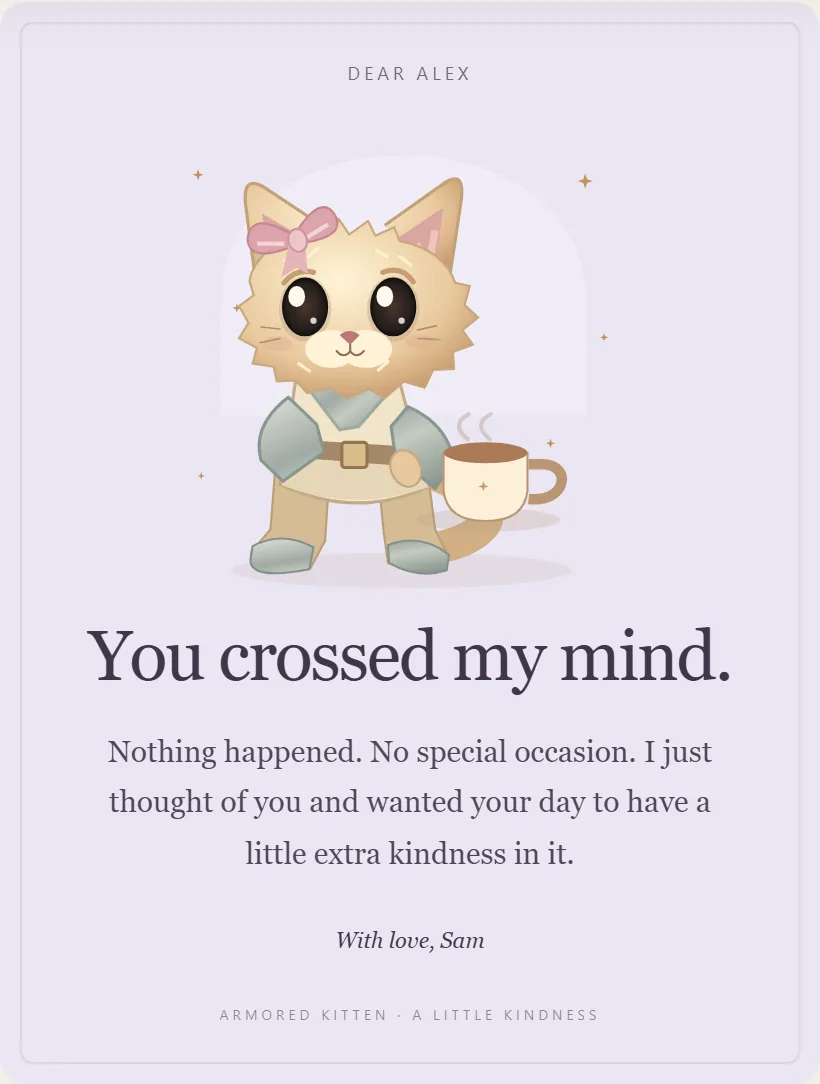
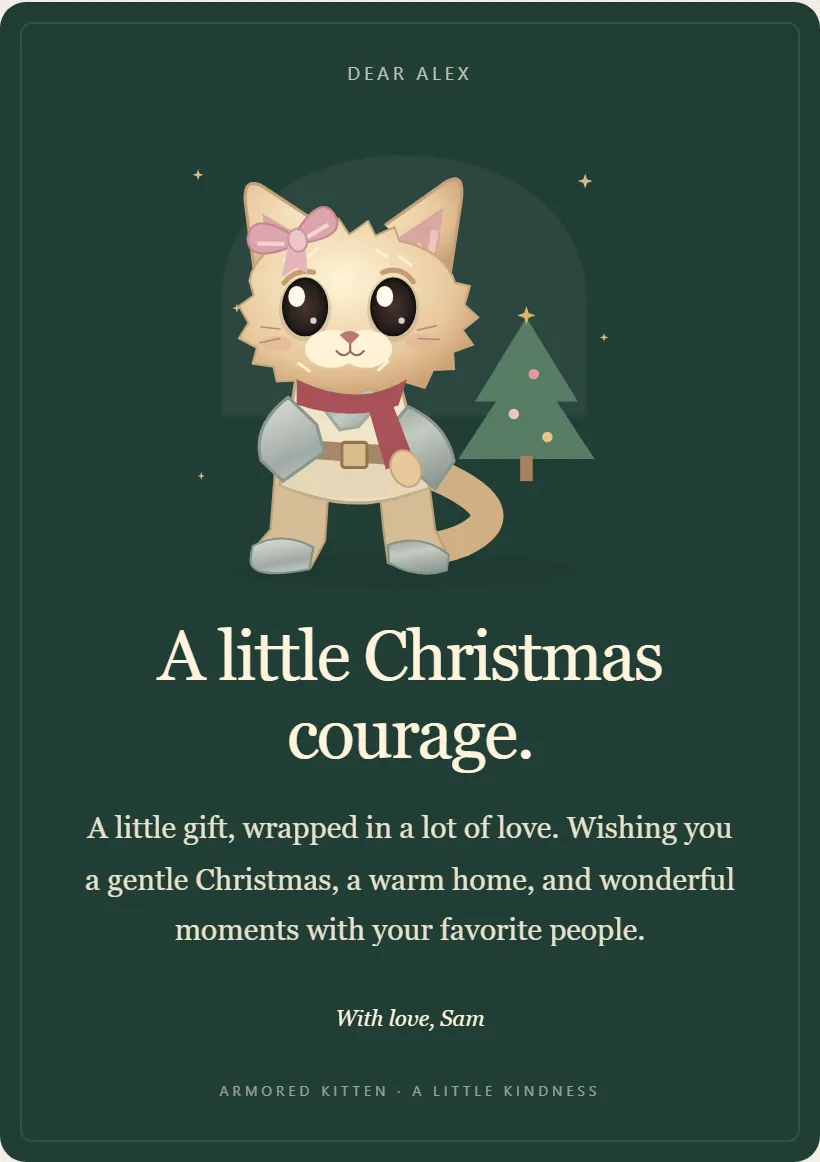
The screenshots below are example cards and editor screens. Names and messages are illustrative, and layouts may change as the site develops.
1. Choose a moment
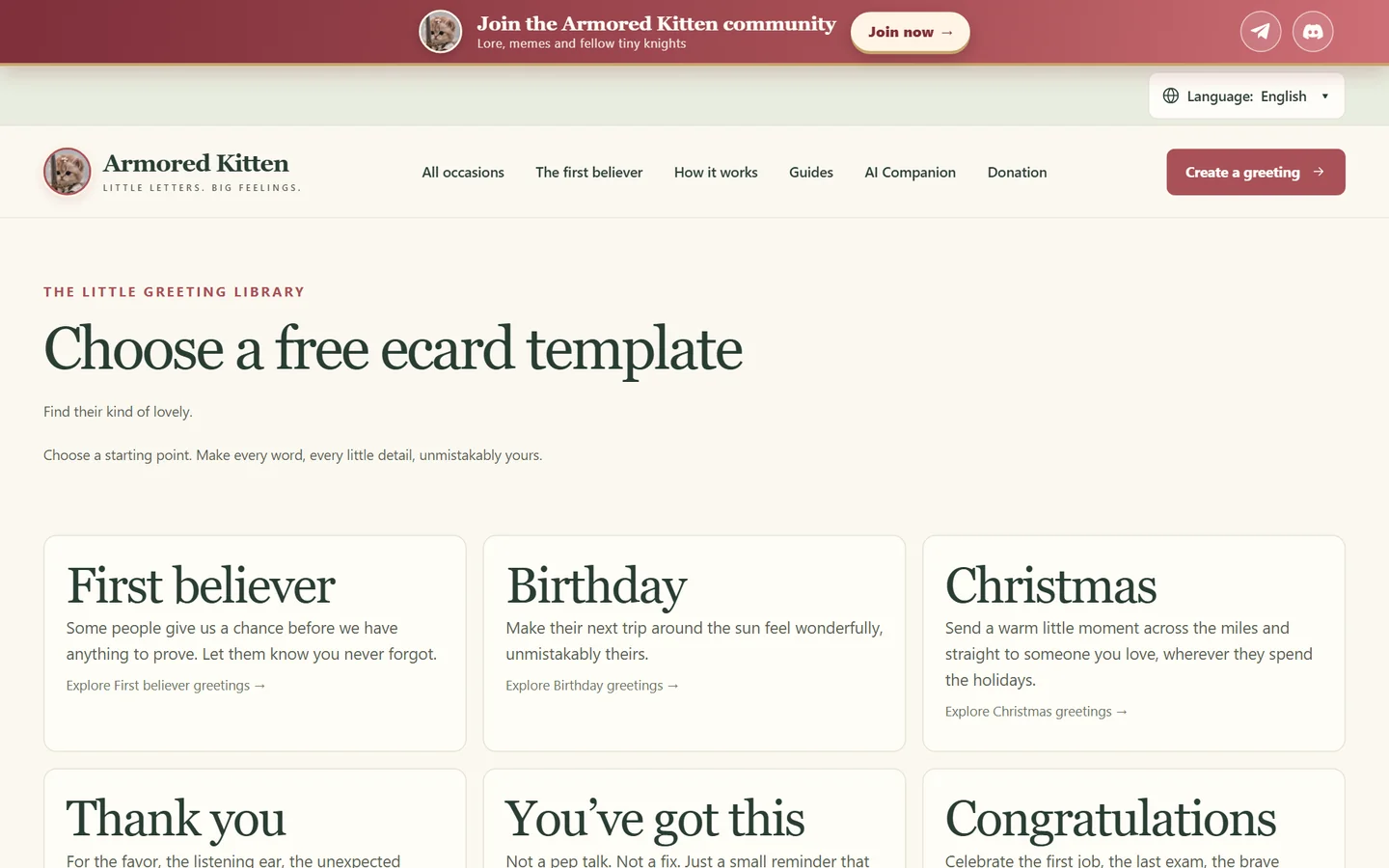
Open Create a greeting or browse the greeting library. Filter by occasion, search for a design, or choose a style such as Storybook, Moonlight or Little postcard. Surprise me offers another starting point.
Choose the design for its illustration and mood: you will edit the words next. Change design takes you back to the library. If you have unsaved changes, follow the editor's save or leave prompt before switching.
2. Make it personal
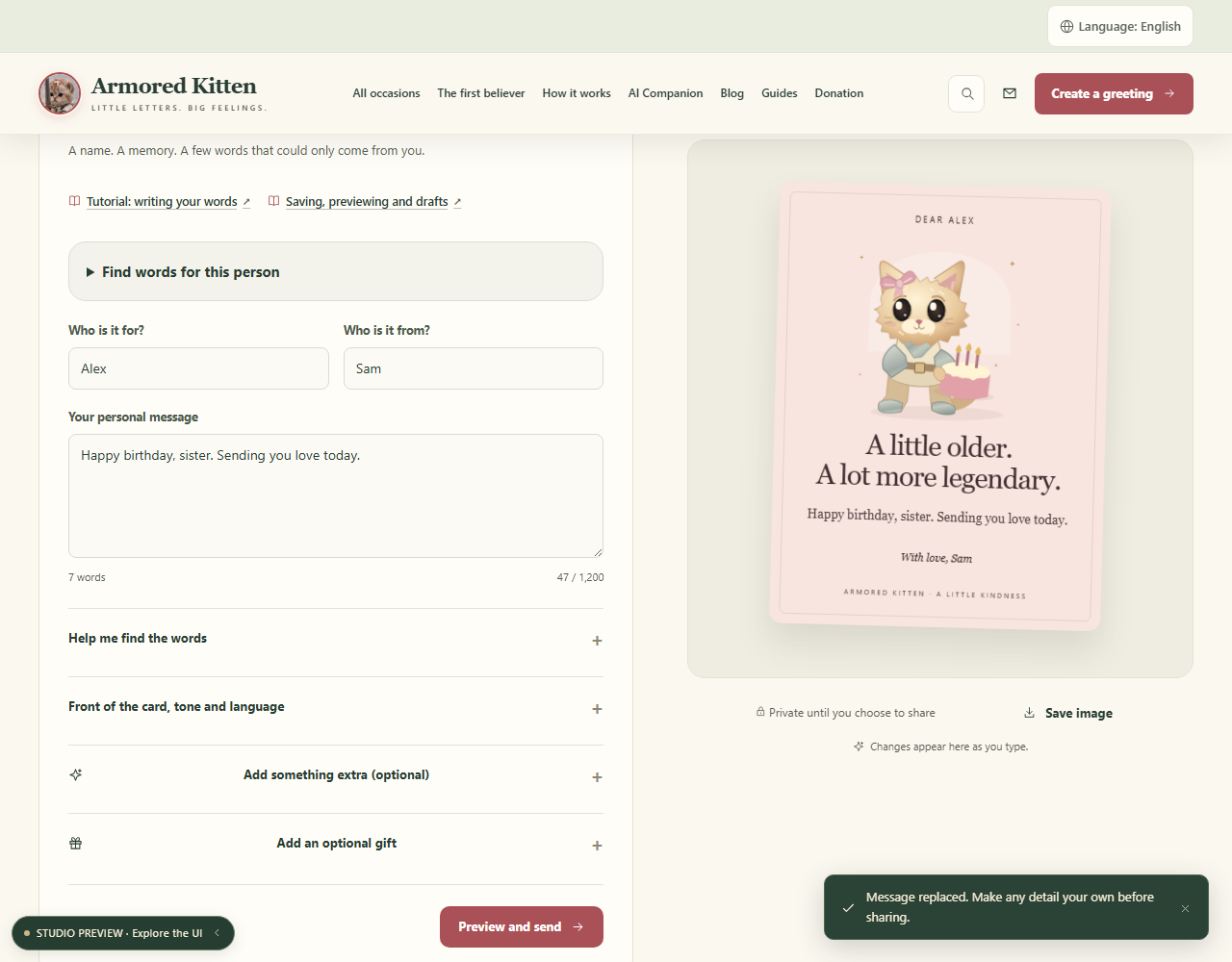
Start with the names and your main message. To change the headline, tone or language, open Front of the card, tone and language:
- Who is it for? and Who is it from? can use familiar names or nicknames.
- The words on the front accepts up to 100 characters. Enter adds a new line.
- Your personal message accepts up to 1,200 characters. Check the live count while writing.
- A little tone of voice offers Heartfelt, Playful and Poetic options for the message helper.
- Message language sets the card's greeting and sign-off. It does not translate your own message automatically.
The preview updates as you edit. On a small screen, use Peek at the card to check the layout. Read the whole message before continuing, especially names and any text left over from the starting design.
Use the memory helper
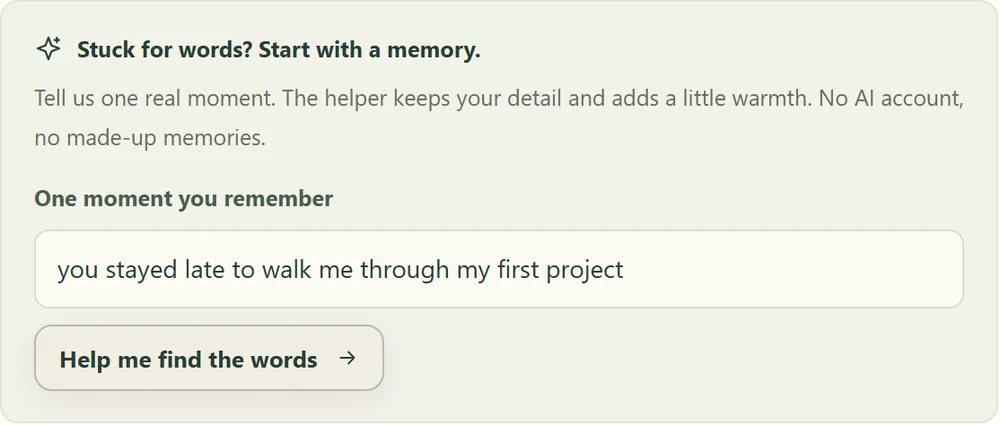
Open Help me find the words and use Stuck for words? Start with a memory to add one true detail. Review the suggested wording and edit it until it sounds like you. In English, Find words for this person also lets you filter examples by recipient and tone. Replace my message with this changes only your personal message and does not share the card; if you have unsaved words, it asks first. Sympathy and pet-loss ideas also switch on Tell them there is no need to reply, which you can switch off again. Explore all message ideas opens the full list. Review any text you choose before continuing.
For more ideas, read birthday messages for friends, thank-you messages for teachers or words of encouragement.
Add something extra (optional)
Open Add something extra (optional) in Make it personal for the appearance and keepsake controls. Choose a style and palette, then add only the details that suit your recipient. Moonlight keeps its dark background.
Tell them there is no need to reply adds that note and removes the greeting's reply controls. Leave it off if you want the recipient to have the reply option.
How the card opens
Choose A little sealed envelope, A moment of starlight or Straight to the message. The last option avoids an opening animation. Recipients can also skip an offered opening animation.
Inside joke and pocket notes
An inside joke, just for them adds a hidden line the recipient can reveal. Three notes to keep in their pocket offers up to three labelled notes; empty notes are omitted.
Use a label that makes sense before the note is opened, such as “For the first day.” A closed note is a visual surprise, not a separate security boundary: someone with the greeting link can open it.
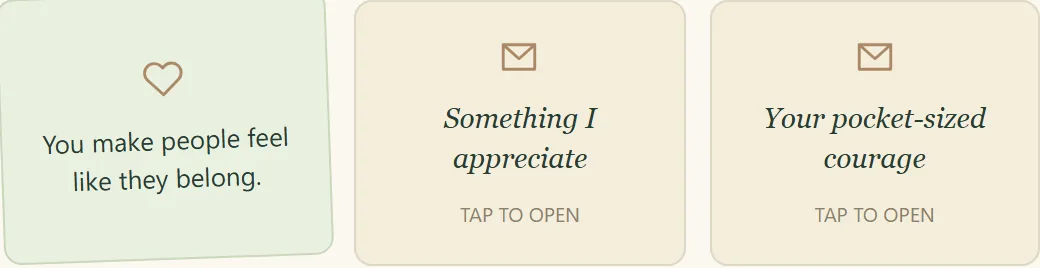
Photo and voice note
Choose a PNG, JPEG or WebP photo. The editor resizes and re-encodes it in your browser before saving the resulting image, rather than uploading the original file's metadata. The picture itself can still reveal a location or personal information; check it before adding it.
For audio, choose Record a little note and allow microphone access. The editor records up to 20 seconds, with a stop control and a player for checking the result. Playback on the online greeting requires the recipient to press play. You can remove a recording and try again.
See the voice-message card guide for recording tips and browser limitations. The current downloaded image and greeting file do not include playable audio.
Add an optional gift
You can leave the gift section closed. If you open Add an optional gift in Make it personal, leave Just my thoughtful greeting selected to send without a wallet. Photos, pocket notes and voice notes do not require a token gift.
If the site enables Add a $ARMORED gift, the sender reviews the token amount and costs, connects their own Solana wallet and approves the transaction there. If the option is unavailable, continue with a plain greeting. An editor preview or saved gift amount does not mean a gift has been funded.
Before using this optional flow, read Jupiter Send explained and the gift safety checklist. If you need purchase guidance, start with wallet setup and a first purchase, then verify the exact token mint. Review current eligibility, costs and recipient requirements before approving anything.
A future gift can require a separate funding step near delivery. Saving a plan or funding reminder never authorises an automatic wallet payment.
3. Preview and send
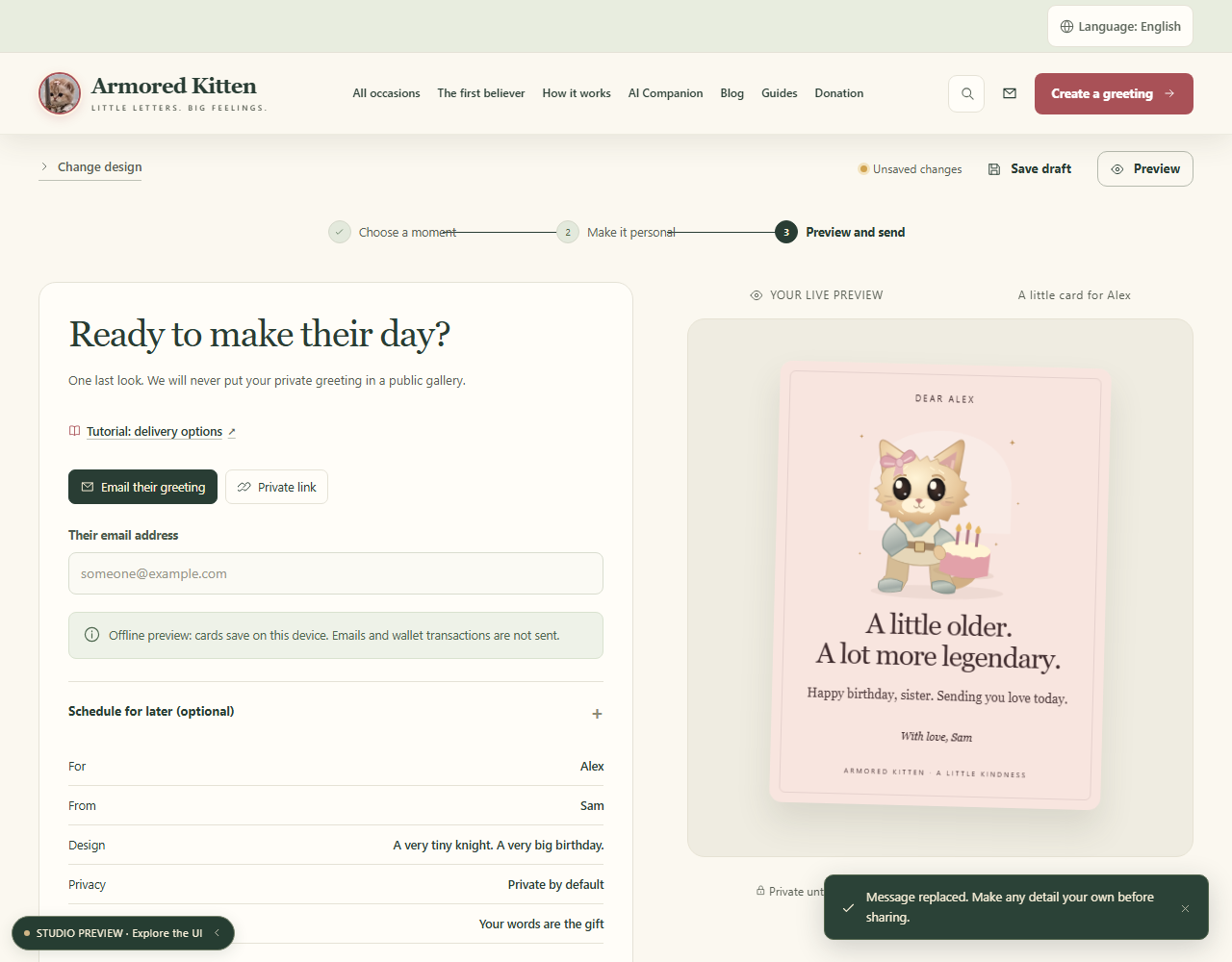
Select Preview and send after you have read the card. Check the recipient, sender, design and gift choice in the final summary. The names shown on the card and the email addresses used for delivery are different fields; verify both.
Private link or email
- Email their greeting: enter the recipient's address. The service queues an email containing a private link after publication.
- Private link: create the link, copy it and share it yourself through your chosen message service. Selecting this option does not send a message to the recipient.
Verify your email
If you are not signed in, enter Your email and choose Send my code. Enter the six-digit code sent to your inbox, then complete verification. You do not need to create a sender password.
Once signed in, use Save draft to save your work to the account. Verification alone does not publish or deliver a greeting. If a code does not arrive, check the address and spam folder before requesting another; follow any retry message rather than repeatedly submitting.
Schedule it for later
Open Schedule for later (optional), choose Schedule for later, enter Delivery time and select the intended Time zone. Recheck the zone rather than assuming the browser's initial choice belongs to your recipient. Repeated or missing times during a daylight-saving change are rejected; choose another valid time if asked.
For email, this sets the scheduled queue time. It cannot guarantee inbox arrival at that instant. For a private link, it sets when the greeting becomes available; you still share the link yourself. Someone opening a future greeting early sees that it is not available yet.
Future token gifts need separate attention: a reminder is not a payment, and a funded gift's expiry must safely cover its planned delivery. Follow the actual review screen before scheduling one.
To finish, confirm that the recipient details are correct and you have permission to contact them, then choose the send or schedule button. For a private link, use Copy private link in the result. Check that result before closing the page.
Preview, save and keep a draft
Preview lets you inspect the card before publication. Check line breaks, the photo, hidden notes and any voice recording. A preview does not prove that an email was delivered or a gift was funded.
Save draft, or Ctrl S while editing, saves an account draft when you are signed in. Reopen it from My greetings to continue editing. An offline preview instead saves locally on that browser; do not rely on it for access from another device.
Save image creates a static picture of the card. It is useful as a keepsake, but it cannot play a voice note or operate a token claim. The current greeting-file download can retain written pocket notes and the inside joke; it also omits playable audio and private gift claim codes. Preview the file before sharing it because the personal card content remains in it.
My greetings: your postbox
Open My greetings to see your account's drafts and published greetings. Reopen a draft to finish it, or check a published card's status and replies. Use Refresh when checking for an update.
A delivery status describes the service or email provider's reported state. Accepted means the provider accepted the email, not that the recipient saw it or that it reached the inbox. If delivery bounces, confirm the address with the recipient before trying again.
The account also offers Download my data and Delete my account. The account export is different from a card keepsake; review the downloaded data before storing or sharing it. Deletion requires confirmation and can be blocked while a gift remains unresolved or delivery is in progress. It cannot erase files or emails another person already has.
Opening a greeting you received
Open the private link from the sender's email or message. Reading the greeting does not require a sender account or a crypto wallet. A future scheduled card may not be available yet.
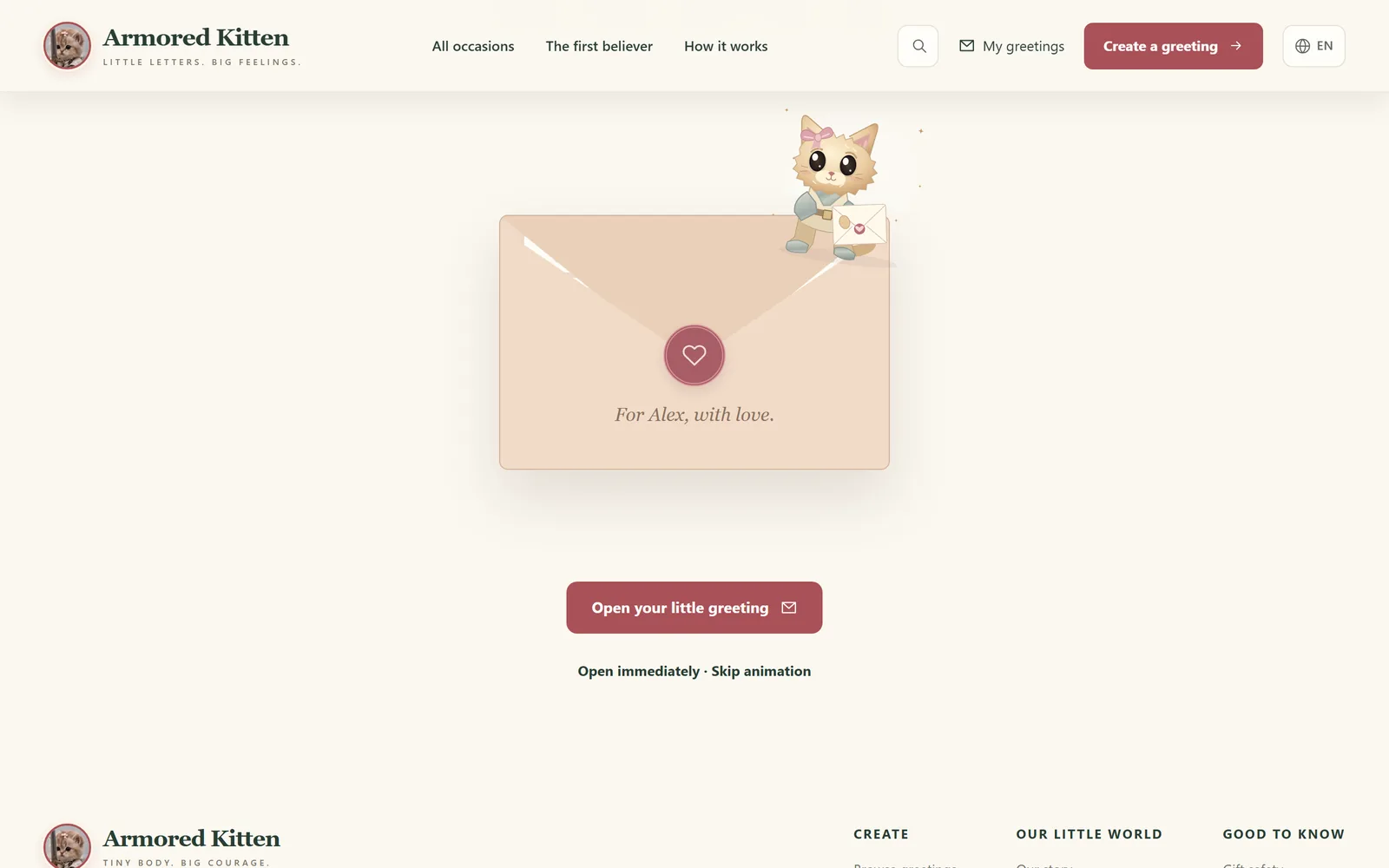
Choose Open your little greeting or Open immediately. Read the message, reveal any inside joke or pocket notes, and press play if you want to hear an included voice note. A wallet is only relevant to a separate token claim, if present.
Reply or keep the card
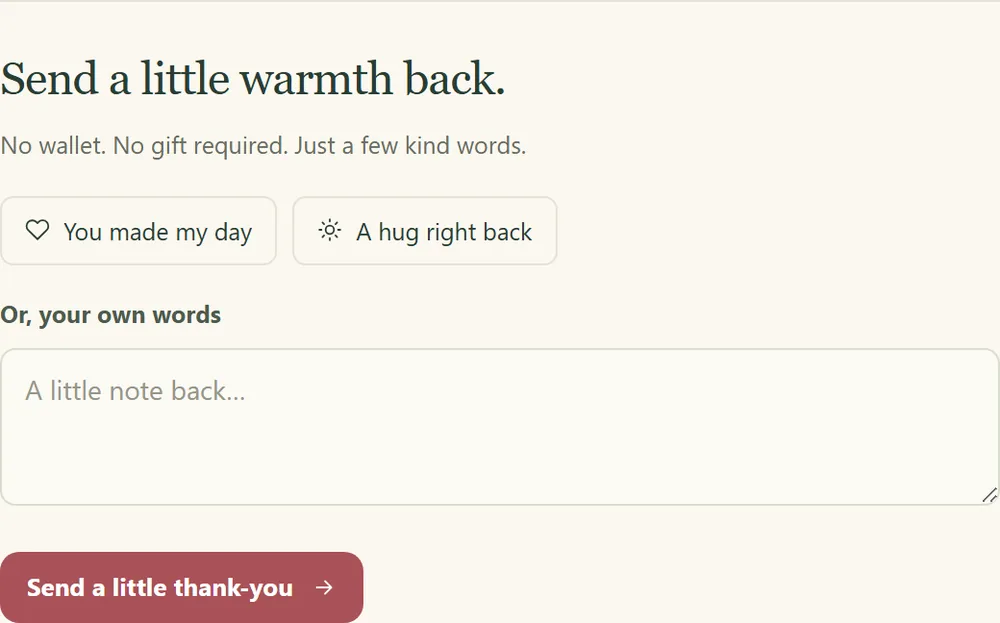
If replies are enabled, Send a little warmth back offers short suggestions or a box for your own words. Choose Send a little thank-you to submit the reply; it appears in the sender's postbox. This short reply needs no wallet or sender account. If the sender selected no reply, those controls are absent.
Use Save the card image or Keep a greeting file for a keepsake. These downloads retain personal card content but do not include playable audio or a private token claim code. Keeping the card is separate from claiming a gift.
Claiming a token gift
If the greeting contains a funded gift, use its private gift control and follow the Jupiter Mobile claim walkthrough. Check the destination and amount. Never enter a seed phrase or private key into a greeting, support chat or claim page.
Stop future greeting emails
The greeting email provides a way to stop future greeting emails to its recipient address. Open the stop page and confirm with Stop greeting emails. This stops greeting emails from other senders; account-service mail can still arrive. It does not claim, cancel or return tokens, delete an account, or remove a downloaded keepsake.
Staying safe
Check unfamiliar links before opening them and keep private greetings out of public posts. Hidden notes and an opening envelope are presentation features; they do not prevent a link holder from reading the card.
No genuine greeting needs your seed phrase or private key. If a message asks for one, stop. See Gift safety, crypto scams for beginners and seed phrase scams for further checks.
Frequently asked questions
Do I need a crypto wallet to send a card?
No. A plain greeting, including its available personal extras, does not require a wallet. Optional token funding is a separate wallet action.
Is Armored Kitten free?
Making and sending greetings is free. An enabled token-gift flow has sending costs shown before wallet approval. A gift amount is not a promise of future value.
Can I edit a greeting after I save it?
You can reopen and edit a draft. Saving a draft and publishing a greeting are different steps; check its status before assuming it is still editable.
Can the recipient keep the voice note offline?
The current card-image and greeting-file downloads do not contain playable audio. Listen through the online greeting; do not assume an exported card contains every interactive feature.
Is my greeting public?
It is not placed in a public gallery. Its private link controls access, so someone you share it with can read it and may share it further.
What is the Armored Kitten AI companion?
It is a separate Telegram companion for planning and check-ins. You do not need it to send greetings. Read the companion overview if that is what you are looking for.
Who runs Armored Kitten?
The Armored Kitten community runs this site.