From chat to the dashboard
- Step 1Open from your bot chat
- Step 2Find an existing item
- Step 3Check the result after an update
See the public screen
Open the private dashboard from the companion inside Telegram to view your account and use the controls offered there. A public visit to the feature hub does not sign you in or reveal your private records.
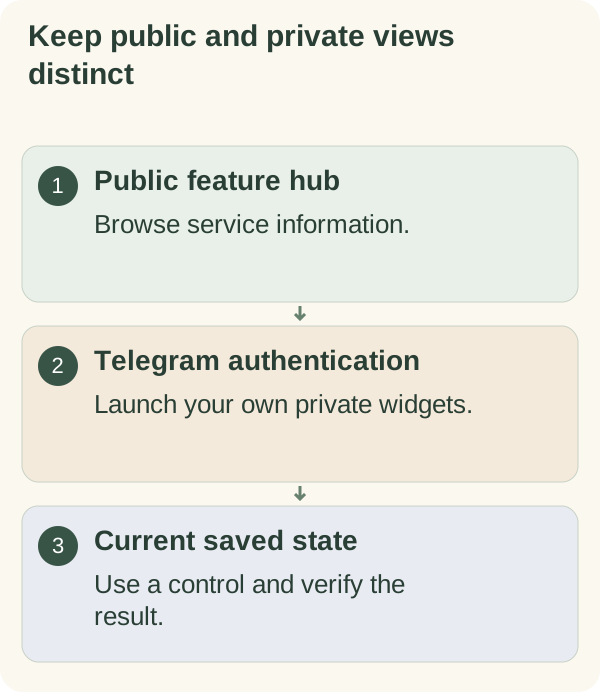
Open the private widgets in Telegram
In the private chat with @armoredkitten_bot, send /features and choose Open your private widgets when offered. Telegram opens the Mini App; choose Open my private dashboard inside it if asked.
The private view requires valid Telegram launch data, a server session and current account checks. A copied public /telegram URL or a group-chat feature link does not replace that authentication. Keep session and setup links private.
If the private button is absent, check the current release and account instructions in chat. A public feature card is not evidence that a personal widget is enabled for your account.
Read and update the supported items
The private view can show goals and steps, today's tasks and progress, the current focus plan and enabled support tools. Which sections appear depends on saved preferences and the available release.
Use the goal-step and task controls to report completion or reopen an item. You can also add or edit today's tasks and change checklist reminders when those controls are available. Enabled routine tools can offer habit actions. Check the refreshed result after each change.
Completion buttons record your report; the dashboard does not independently verify the activity. If the data changed elsewhere, reload rather than repeatedly submitting an old card.
Use the goals, habits, focus and today guides for their full workflows. A status change is not a message to another person.
Recover from sign-in or session trouble
The current session lifetime is 15 minutes. When the page reports expiry, return to the private bot chat and launch /features again. Follow any account or email step the bot requests before reopening the dashboard.
If a save fails or reports stale data, reload and inspect the current record before retrying. A button tap does not prove the update was stored. If the service is unavailable, use the relevant chat command when available and try the dashboard later. Read privacy controls before sharing screenshots of personal widgets.