Turn a list into a day
- Step 1Check fixed commitments
- Step 2Choose one next action
- Step 3Review what was actually saved
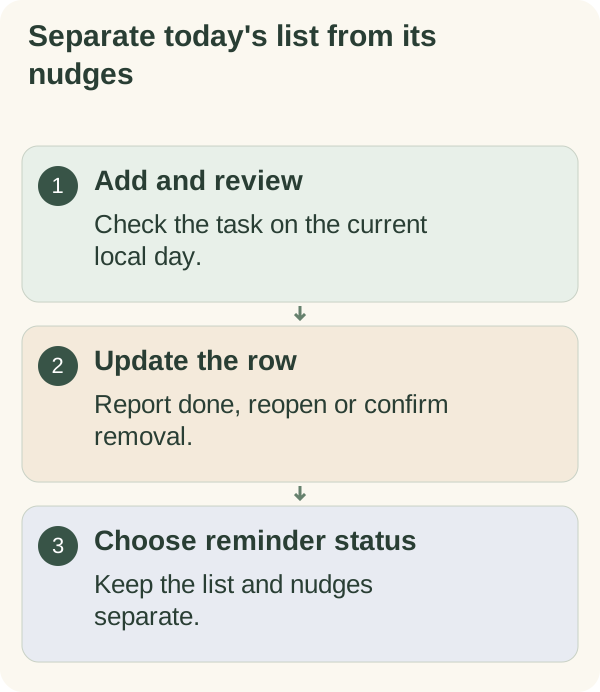
Open Plan my day or send /today to view the task list for your current local day. Add a clear action, check the saved row and update it when the result changes. Review reminders separately; their status does not determine whether the task exists.
Choose one recognisable task
“Open the saved application” identifies an action. “Sort everything out” leaves the next decision unclear. Keep the title brief and non-sensitive, then add more tasks only when that serves the day you have.
Use the browser daily planner if you want to sketch priorities first. It does not synchronise its text with Telegram. For repeating actions, use My habits.
Open and add a task
Tap Plan my day or send /today. Choose Add task, enter the title when prompted and review the reply and refreshed list. You can also send:
/today add Find the appointment folder
The current limit is ten tasks for the local day. The card displays the date, open or completed rows, progress and reminder status. Check its date when your saved time zone differs from where you are now.
While the bot is waiting for a title, /cancel ends the input without adding the task. If a confirmation is offered for a particular conversational flow, read it before accepting; the direct command and every AI conversation need not use identical steps.
Update progress
Tap the ⬜ row when you want to mark that task done. It becomes ✅. Tap the completed row to reopen it if you reported the wrong result. To remove an item, choose Remove and read the confirmation before completing it.
For example, after adding “Find the folder” and “Draft the question”, marking the first row done should show one completed item out of two. This is an illustrative record, not independent evidence that either action happened.
Some cards also offer support choices such as making an action easier, returning later or pausing a task. Read the resulting status and use the available resume control when you want to continue. Paused or deferred work can differ from work currently eligible for a reminder.
Choose whether to get reminders
Read the reminder status on /today. Choose Pause reminders to stop checklist nudges, or Turn on reminders when they are off and you want them. A saved time zone is required for the local schedule.
Account setup and message settings can affect the initial state, so check your account's actual card. The current schedule has seven possible local slots. Eligibility and service conditions can reduce delivery to fewer messages or none.
Use the checklist-reminder guide for the slots and separate controls. The task list remains usable when its reminders are paused.
Fix a stale card or undo a tap
Send /today to load the current local date and controls. Reopen a wrongly completed task by tapping its ✅ row. Use a fresh card if an old button no longer matches the current record.
If the date or schedule looks wrong, check the saved time zone. If access or service checks prevent a response, follow that message rather than repeatedly adding the same task.
Keep the list and its data in perspective
The checklist records what you enter and report. It is not a score of your day. Keep sensitive records in an appropriate place and let a short task title point to them if needed.
Review companion privacy for data controls. The weekly review worksheet can help you decide which unfinished items still need a place, without automatically moving the whole list forward.