Link a wallet from the prompt in your private companion chat. Review the ownership message in the wallet before signing. This linking flow uses a message signature, not a token transfer.
Choose the wallet you control
Open the linking prompt in your private chat with @armoredkitten_bot. Choose Phantom, Solflare or another compatible wallet option actually offered by the page. Mobile and desktop wallet integrations can differ.
The service prevents the same wallet being claimed by two companion owners. If it reports an existing link, use the existing account or the supported recovery flow. Repeated attempts from a second account do not replace ownership verification.
Review and sign the message
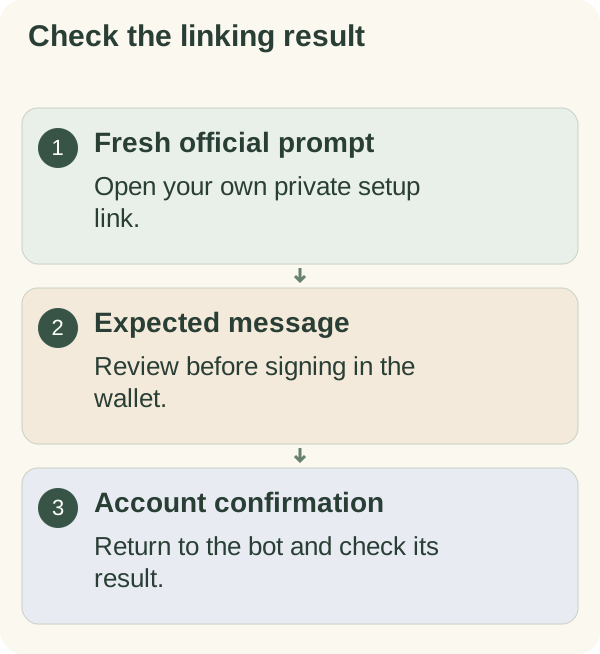
Check the page address and read the wallet prompt. The expected request is a message proving control of the address for this linking session. Confirm the intended account before approving it.
A Solana message signature does not require a network transaction fee; Phantom's signing documentation describes this ownership-check pattern. That does not make every message safe to sign. Only approve the expected request you initiated. Cancel an unexpected transaction or a request for recovery words.
Linking lets the companion associate the public address with your account and perform configured access checks. A signature alone does not guarantee current access or transfer tokens.
Use the wallet browser or copy link
If the wallet does not open, use the page's wallet-browser option or copy the session link into a compatible wallet browser. Keep that link private. Copying it is only a way to open the request, not completion of linking.
Return to the same bot chat after the wallet step and read the result. The account may have another required setup step.
Recover from a cancelled or expired attempt
If you cancel or the request expires, return to the bot for a fresh link. Check the current result before retrying after an uncertain response; the signature could have been processed even if a page stopped loading.
Never provide a recovery phrase or private key to the bot or linking page. For account changes, follow the account recovery guide. For setup order, return to the quick start.