First private session
- Step 1Open the private bot chat
- Step 2Follow the setup shown
- Step 3Try one action and check the reply
See the public screen
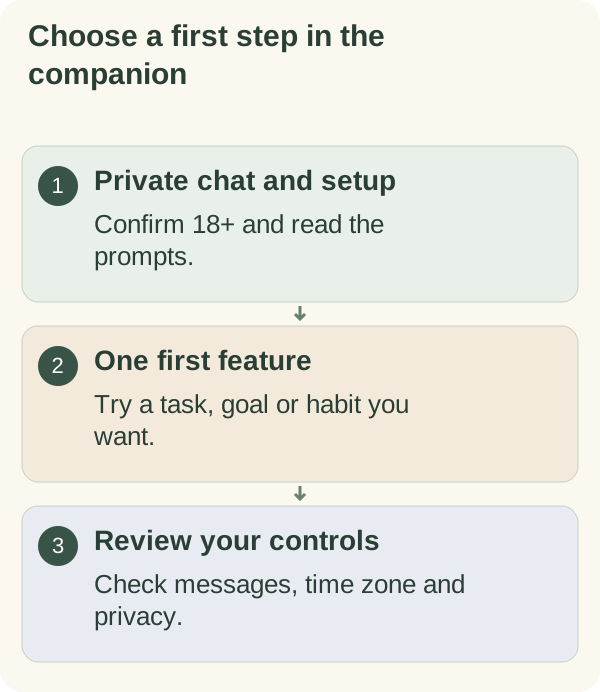
Open the companion's private Telegram chat, confirm the 18+ card (it uses your Telegram app language when the bot offers it; tap Change language for another) and follow any setup shown for your account. Then try one action, such as adding a task or viewing your goals. Keep the first visit focused on the feature you want to use.
Open the private chat
Open @armoredkitten_bot in Telegram and send /start. Use the private chat for personal planning. A community group and the private companion are different places; a group invitation does not move a personal conversation into the bot.
If you have used the companion before, /start returns you to its entry flow. The options shown can depend on your saved choices and account state.
Complete the setup shown to you
A new user first sees one 18+ card in their Telegram app language, or in English if the bot does not offer that language. Tap Change language to choose another, or confirm the card to keep it; the bot then shows any account instructions that follow. If the bot asks for your country or time zone, choose the details that apply to you rather than relying on a Telegram language hint.
Read the access guide for account-specific AI availability, and check the actual account message for the conditions that apply now.
If an email-specific feature asks for verification, follow the code instructions in the private flow. A wallet ownership check, when offered for your access route, asks you to sign readable text. Check the account named in that message. Do not supply a seed phrase or private key.
Use email verification help or the wallet-linking guide for those specific steps.
Choose a first action
Pick the feature you need now:
- Plan my day or
/todayopens today's task list. - My goals or
/goalsopens saved goals and their available controls. - My goals → My habits, or
/habit, opens recurring routines. /tutorialsopens the guide menu when you want instructions before making a change.
For an illustrative first task, try a short non-sensitive title such as “Find the book.” Review the resulting card so you know whether the task was saved. A suggestion in conversation and a saved record are different things to check.
If you only want to sketch a plan in your browser first, use the daily planner. Its notes do not synchronise with Telegram.
Review messages and privacy
Open Settings to review the saved time zone, then choose Messages to manage scheduled message types. Daily notes, checklist reminders, conversation starters and feature tips have separate controls. Their current status is more useful than assuming a new account starts with your preferred settings.
Send /quiet when you want to stop proactive messages, then use the message-controls guide to understand which settings changed. Requested replies and saved tasks are separate from those scheduled messages.
Use /privacy for the data explanation, /memory to inspect available saved information and /export for a data copy. /forget begins the broader deletion flow; follow its result rather than assuming a request always finishes immediately.
The companion supports everyday planning and encouragement. Keep sensitive information out of a general planning conversation and use appropriate professional support for concerns outside that purpose.
Find help or return later
Reopen the same private chat to return. If a card looks old, use the relevant command again to load its current controls. Send /cancel when the bot is waiting for input you no longer want to provide.
Continue with the daily task-list guide, habit guide or troubleshooting guide, according to what you want to do next.