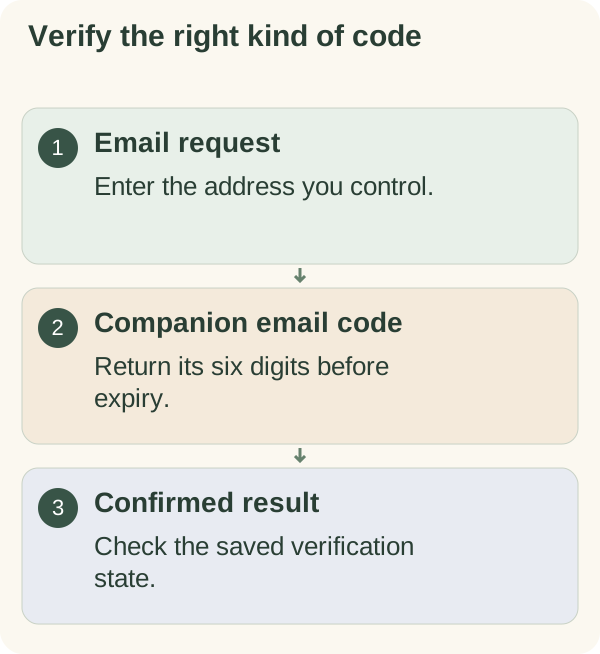
Use the email-verification flow when the companion asks for it. Enter an address you control, then return the code from that email to the same private bot chat. Verification and account access are separate results to check.
Enter the address
Start from the current prompt in your private chat with @armoredkitten_bot. Check that the bot is asking for an email address before sending it. The service can require this step at different points depending on account configuration.
Use a mailbox you control. An email address field does not need your mailbox password, Telegram login code, wallet recovery words or private key. Keep the setup out of public groups.
Find and enter the code
Look for the companion verification email in your inbox and filtered folders. Return its six-digit code to the same private bot chat within 15 minutes of issue. Read the bot's result before moving to the next step.
This is the code issued for the companion's email check. It is not a request for a Telegram login or two-step verification code. Do not forward either kind of code to another person.
If a newer code was issued, use the newest email. An expired code, incorrect entry or attempt limit needs the recovery instruction shown by the bot; repeated guessing will not complete verification.
If no email arrives
Check the address and whether the mailbox can receive mail. Search spam, junk and other filtered folders for the companion's verification message. Use the current resend option if offered and respect any waiting period.
An acknowledgement does not prove that an email arrived or verification succeeded. If setup remains stuck, return to /start and follow the current account prompt. See wallet linking only if that is the next step offered, or use the quick start to review setup order.