Use Settings to see whether a daily note is enabled, choose its content and pause it when you want. Review the actual setup and status shown for your account before expecting a scheduled message.
Enable daily messages
In the private chat, open /settings, choose Messages and find the daily-message control. If the category is off, choose its enable option and complete the prompts. Read any setup notice about other automatic-message preferences, then review the final Settings card.
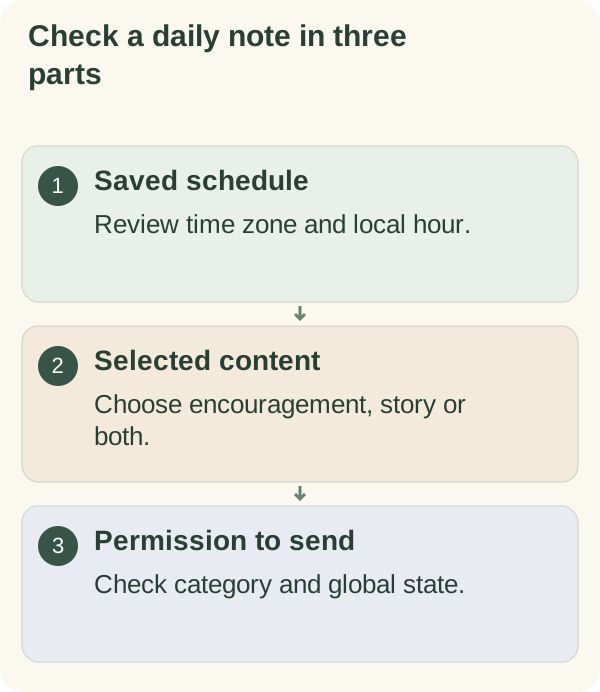
The daily note has a saved local time and content format. The standard initial time is 09:00, but an existing preference can differ. Check your own card. A scheduled note is not the companion detecting when you wake up.
Pause or resume messages
Choose Pause daily messages to turn off that category. Other reminders and requested follow-ups have separate controls. Conversation starters and feature tips can also depend on daily messages being enabled; check their saved settings rather than assuming that one switch describes every channel.
Use /quiet or /stop when you want the global automatic-message stop. Changing one category or sending an ordinary reply does not lift that stop. When you want to return, use /notifications or /resume, then review which categories remain enabled. The stop and pause guide explains the difference.
Change the time or format
In Messages, choose Daily time to enter a local time and Daily content to select encouragement, a story or both. Reopen Settings to verify the saved values. See the time and format walkthrough for examples.
If a message does not arrive
Check the category switch, global stop or pause, time zone, saved hour and current account availability. Service configuration, delivery limits and temporary problems can prevent a send. A saved schedule does not prove delivery, and a late note does not establish anything about your activity.
A story-only send needs an eligible reviewed story. Do not create another reminder just to replace a missing note. Check the current settings and avoid adding duplicate schedules. For a follow-up about a specific action, use the separate requested check-in flow.